
Open a supported Nx Witness site database or SQLite backup directly in NX Camera Info. You can inspect the saved camera inventory without restoring it into a running Nx server or uploading it to this website.
Choose the site database.
Network Optix identifies ecs.sqlite as the site database containing system settings, user rights and device configurations. Its database file reference distinguishes that file from mserver.sqlite, archive indexes and recording files.
Common Network Optix locations are /opt/networkoptix/mediaserver/var/ecs.sqlite on Linux and C:\Windows\System32\config\systemprofile\AppData\Local\Network Optix\Network Optix Media Server\ecs.sqlite on Windows. OEM products and installations can differ. These locations help identify a source; they are not instructions to edit or delete server files.
Prefer a consistent backup.
In the Nx desktop client, open System/Site Administration and look for Backup and Restore, commonly under Advanced, then Create Backup. Menu wording and location can vary with the client version. See the Nx site database backup instructions. A visible site in the web portal does not necessarily expose the desktop client’s backup control.
If you copy a live SQLite database while the server is writing, the main file alone may omit committed data held in its write-ahead log. Do not remove active WAL or shared-memory sidecars. Use an Nx-generated backup or a consistent SQLite backup made through an appropriate administrative procedure.
Open and inspect the file.
- Keep the original backup, then choose Open database → Local file in NX Camera Info.
- Browse to the copy. The app expects a supported SQLite schema, regardless of whether the filename ends in
.sqlite,.dbor another backup suffix. - Browse, sort and filter the camera inventory in Free. With an active Pro licence, explore stored credentials and the other report pages.
- Close the database when finished. The reader does not write changes to camera or Nx configuration.
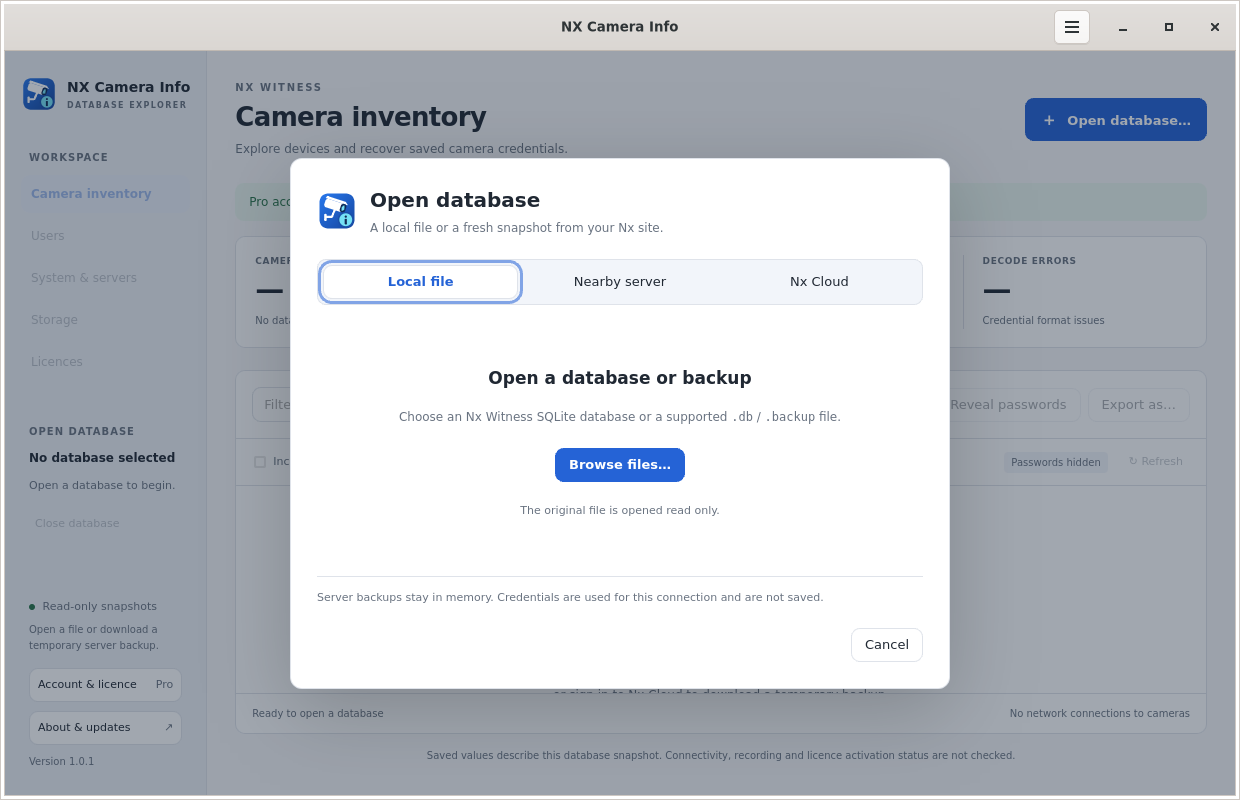 Open a local database
If a backup does not open
A filename ending in .db does not guarantee it is a supported SQLite database. A proprietary backup, corrupt transfer or incompatible schema can be rejected. Preserve the original, confirm the source and obtain a fresh consistent backup where possible. Renaming the file does not convert its format.
Compatibility has been verified with the Nx 6.1.2 database and credential structures described by the app; not every past, future or OEM version is promised. Free local inventory viewing is a useful compatibility check before relying on Pro recovery.
For a temporary backup downloaded directly by the app, use the Pro server and Nx Cloud workflow. That route has a 128 MiB decoded download limit. Configuration backups do not contain recorded footage, and this app does not restore a VMS server.