
A backup can answer
more than you think.
Illustrative recovery and handover scenarios—not customer testimonials. Each starts with permission to access the site and a readable, supported database snapshot.
The recorder is gone. The backup survived.
A small business has a failed Nx Witness server and a recent database backup, but no camera schedule. Open the backup on a separate laptop. Free gives you names, saved addresses, manufacturers and models. Pro adds stored camera credentials, server details, storage paths and licence records to support the recovery plan.
The result: a starting inventory for rebuilding the installation. The saved values still need checking on site, and the video archive requires a separate recovery process.
Work through failed-server recovery →You can manage Nx, but nobody kept the camera logins.
The cameras are configured in Nx Witness, but their installation notes are missing. Ask an authorised administrator for a fresh backup. With Pro, inspect each camera’s stored credentials and distinguish recovered values from missing records or decode errors. Keep any revealed report in a restricted location.
The result: saved camera access details to review through your normal maintenance process. This does not reveal Nx user account passwords or bypass camera authentication.
Understand saved password recovery →The handover is a database file and a set of keys.
A new maintenance team inherits a multi-server installation. Begin with the Free camera inventory, then use Pro to connect camera assignments with server versions, local and cloud account roles, and recording or backup storage. Export the reviewed information for the team instead of retyping every field.
The result: a documented baseline with a clear snapshot date, missing fields and a list of questions for the site owner.
Build a useful site handover →Replace the server with the important details written down.
Before a planned migration, capture a consistent backup and review its stored build identifier, camera assignments, storage paths and full Nx licence records in Pro. Keep the report alongside the official migration plan and your separately protected archive backup.
The result: a reference for the person doing the migration. Licence deactivation estimates are snapshot values, not approval from an online activation service.
Prepare the migration report →The site is on Nx Cloud. You have no direct server address.
With Pro, sign in through the app’s Nx Cloud tab, choose an owned or shared site and request a backup through the cloud relay. The site must permit the backup; shared Power User access is insufficient. The downloaded SQLite snapshot opens in memory for review.
The result: a local inspection without adding port forwarding. Save a backup only if you deliberately need to retain one.
Follow the cloud backup workflow →Take the recovered inventory to the actual network.
Use NX Camera Info Pro to export the saved site report, then use sister app SADPTools to bring that information into a site workspace. On the authorised network, compare compatible discovered devices with the saved names, addresses and identities. Keep discrepancies visible instead of assuming the old database is current.
The result: a practical bridge between the saved configuration and supported on-site checks. Device capabilities and network access still determine what SADPTools can do.
Combine NX Camera Info and SADPTools →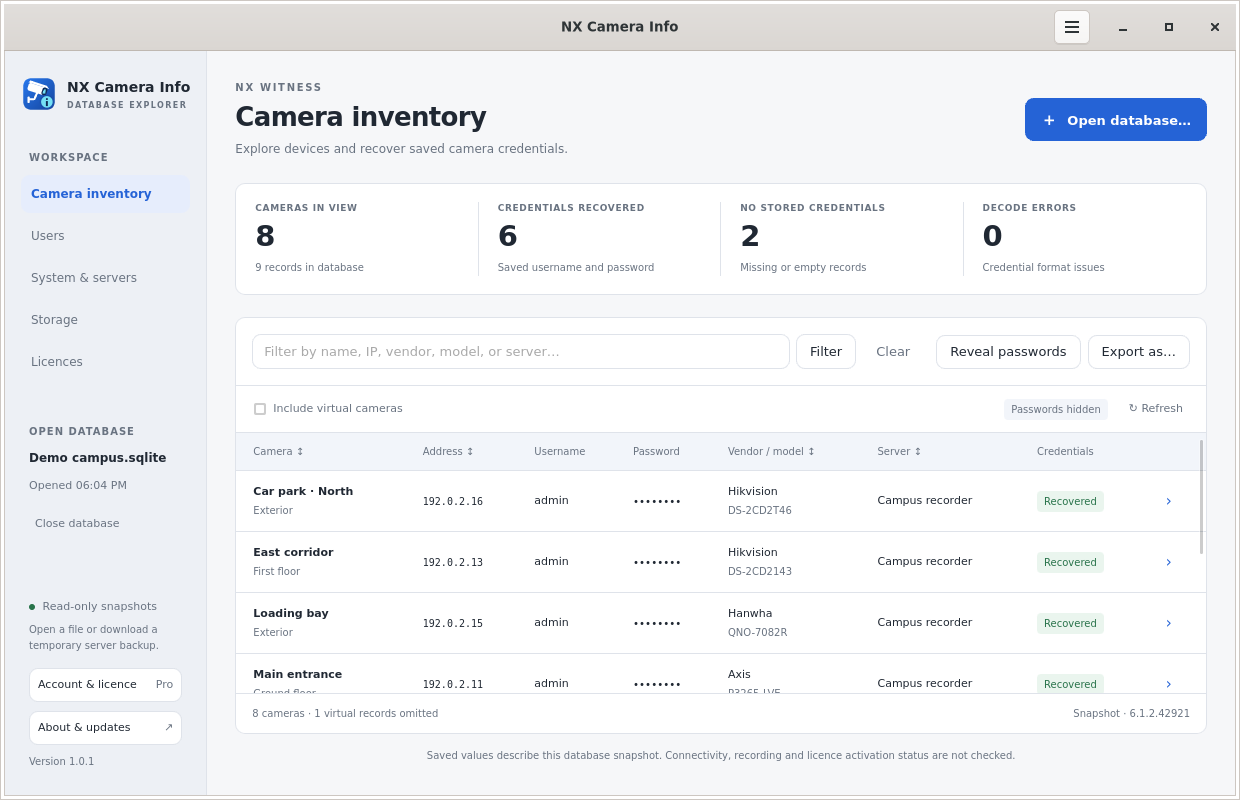 Camera inventory in Pro
Download Free to inspect a local inventory · Check Pro features and purchase availability